
✦ DOCUMENTATION
The Conversion Wizard
The screen you will spend most of your time in: choosing pages, running the job, and reviewing what came out.
Documentation
Start here
Using the plugin
Reference
The Conversion Wizard is where you will do the actual work. You choose what to convert, the plugin rebuilds those pages as blocks, and you review the results.
👤 Who can use it
The wizard requires the edit_pages capability, which Editors and Administrators have by default.
Step 1: pick a mode
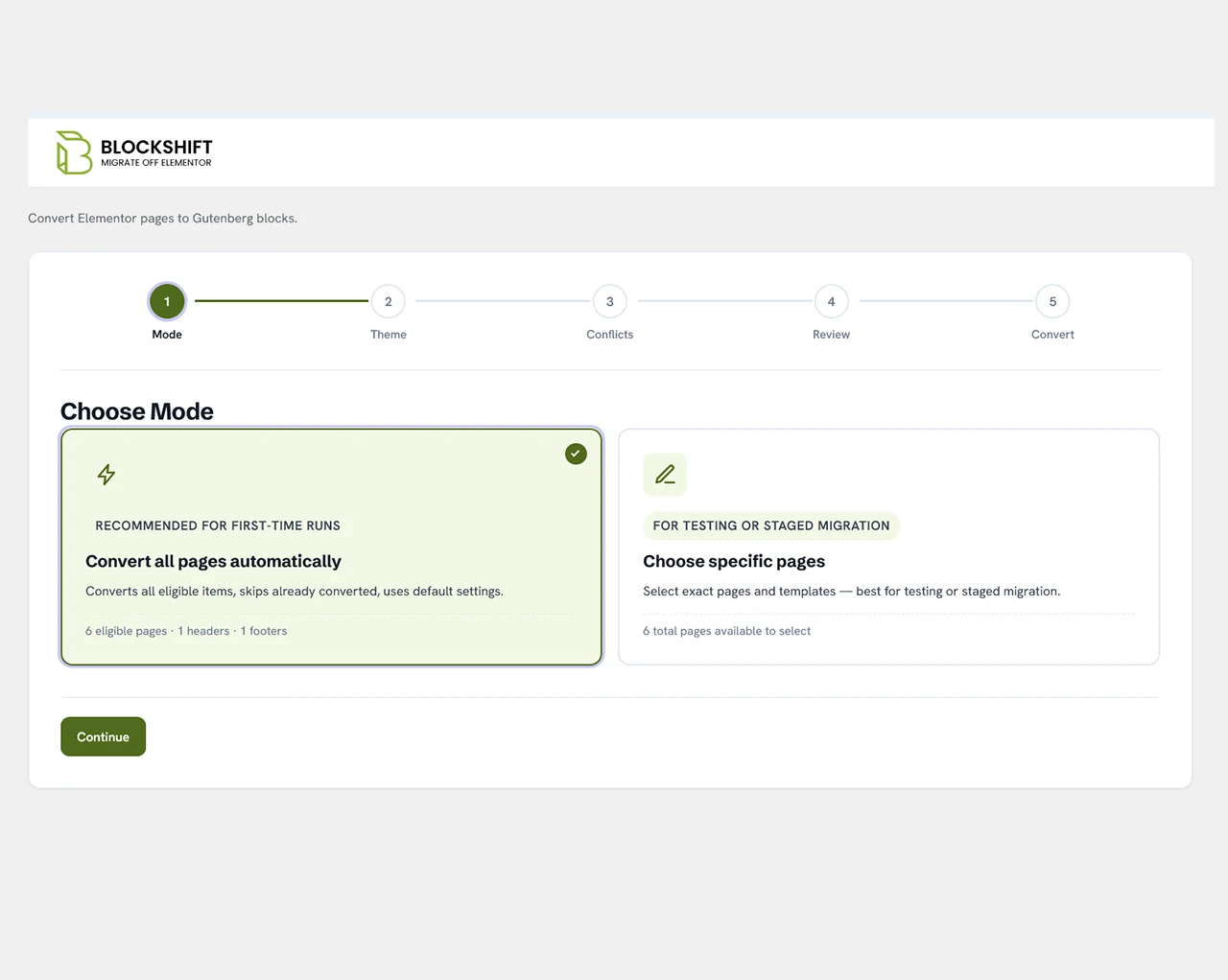
The wizard opens on the mode choice. Convert all pages automatically takes every eligible item, skips anything already converted, and uses your default settings — the right choice for a first run. Choose specific pages lets you hand-pick pages and templates, which is what you want for testing or a staged migration.
Step 2: check the theme
Block themes work best with the block editor, so the wizard shows your active theme alongside the compatible ones already installed. You can keep what you have or switch before converting.

Step 3: headers and footers
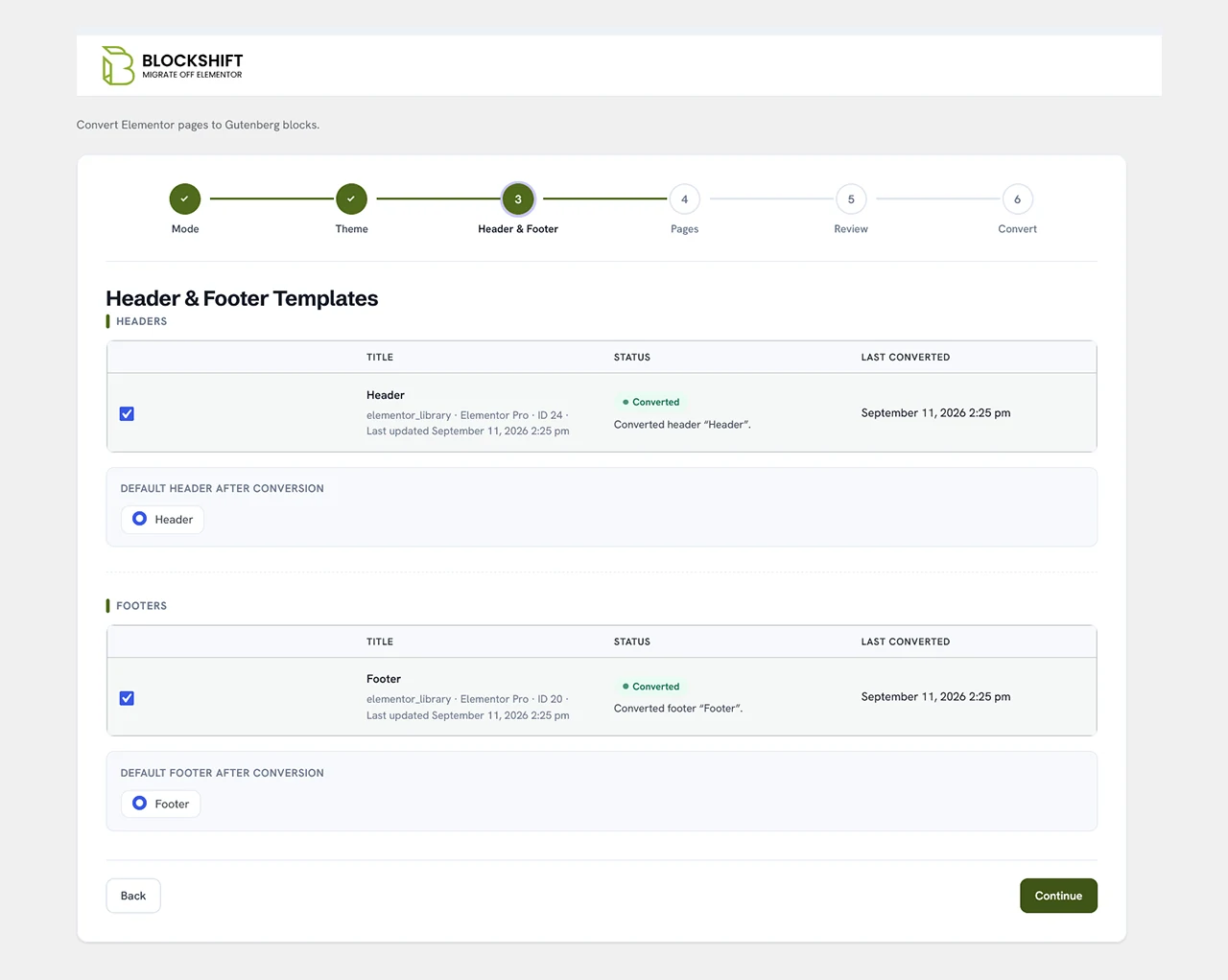
If Elementor built your header or footer templates, they are listed here with their conversion status and when each was last converted. You also pick which converted header and footer become the defaults afterwards.
Step 4: choose what to convert
The wizard lists the content on your site that was built with Elementor, grouped by type (pages, posts, and any Elementor-enabled custom post types). Each item shows its title, status, conversion status, when it was last converted, and a compatibility indicator — a warning count there tells you a page has widgets that will fall back.
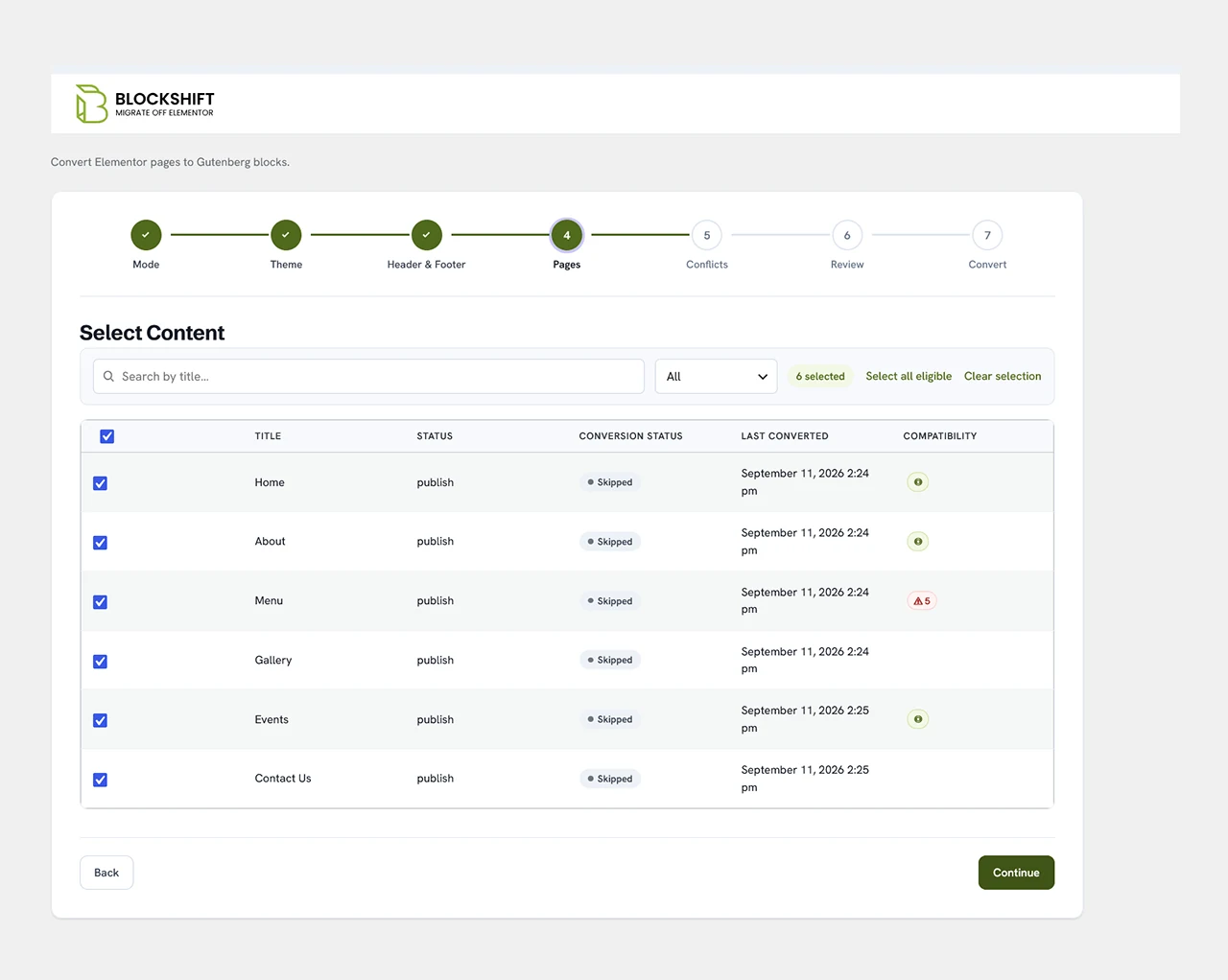
Pick the page you want. It is worth converting a single page first and reviewing it before you commit to the rest.
Step 5: review the plan
Before anything runs, the wizard shows the whole plan on one screen: how many pages will convert, which header and footer are selected, the theme you are keeping, and how naming conflicts will be handled. Every section has an Edit link back to the step it came from.

Step 6: run the conversion
When you start a job, the plugin reads the page’s saved Elementor layout, walks through its sections, columns, and widgets, and maps each one to a block. It carries the styling across as it goes: colours, fonts, spacing, alignment, backgrounds, and widths. Your Settings are applied here too, including the page width and whether metadata and the featured image are copied over.
The result is saved as a brand-new page or post. The original Elementor page is left untouched. Progress shows as the job runs, and you can cancel it partway through if you need to.
Step 7: review the results
When the job finishes you get a per-item summary: what converted, what was skipped, how long each took, and any errors. From there you can open the converted page in the block editor, run an AI Enhancement pass if you have set up a key, or send feedback to the developers (opt-in only).
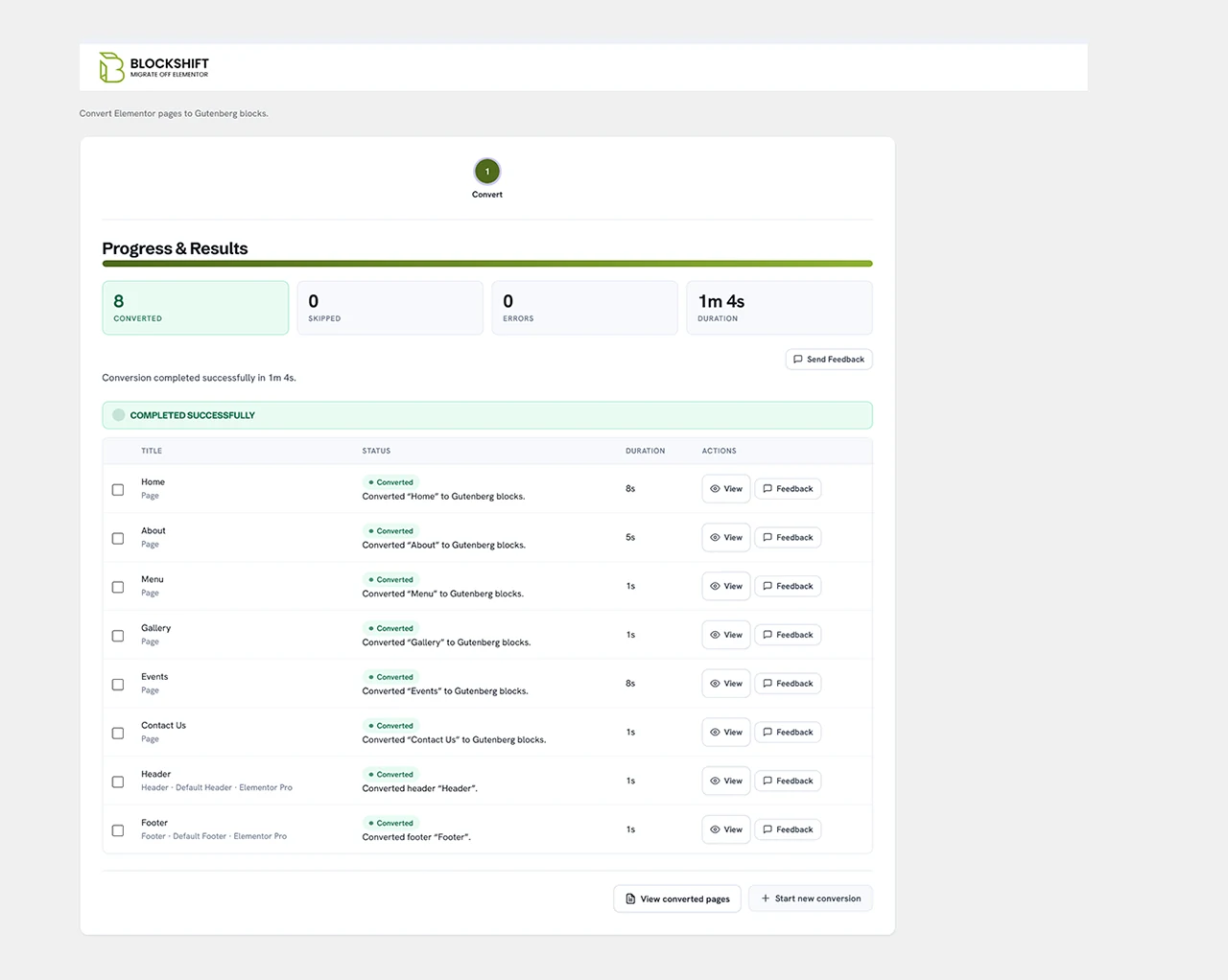
Always cross-check against the Conversion Log, which records exactly what happened to each widget.
Reviewing a page properly
- Open the original Elementor page on the front end in one tab.
- Open the converted page in a second tab.
- Compare them top to bottom, both at full width and in a narrow window.
- Look hardest at hero sections, buttons, side-by-side columns, forms, and any spacing that seems off.
- Check anything odd against the Conversion Log.
- Fix small things in the editor, or run an AI pass for a closer match.
Going live
Because the converted page is separate, going live is your call. Most people do one of three things: point their menus and links at the new page and retire the old one; copy the converted blocks back into the original page so the URL does not change; or convert and verify a whole section, then switch it all over at once.
Whichever route you take, keep the original Elementor pages until the entire migration has been checked.
Quick answers
Yes. It creates a fresh result each time; review the new one.
No. It makes new content, and you decide if and when to switch over.
Work through them and review as you go. Small, checked batches are safer than one big run.
✦ KEEP READING
Related pages
Conversion log
The per-widget report for each page.
After conversion
What to expect, and how to tidy up fast.
Settings
The options applied during a conversion.
Convert your first page in a click.
Free and open-source, running entirely on your own server. Your Elementor pages stay exactly where they are.