
✦ DOCUMENTATION
Getting started
Requirements, installation, and running your first conversion end to end.
Documentation
Start here
Using the plugin
Reference
Requirements
| Minimum | |
|---|---|
| WordPress | 6.7 or later |
| PHP | 7.4 or later |
| Elementor | Used to build the pages you want to convert |
A few things worth knowing:
- Elementor only needs to have created the pages. It does not have to stay active afterwards — once your pages are blocks, you can switch it off.
- WooCommerce is only needed if you are converting WooCommerce elements.
- The optional AI Enhancement feature needs your own Anthropic (Claude) API key. The conversion itself needs no account and no key.
Before you begin
You are changing how your pages are built, so treat it like any other significant change. Back the site up first, or better still, run the first conversions on a staging copy.
🛡 It is careful by design
The plugin never deletes or overwrites an Elementor page; it creates a new page for the converted version. A backup is still worth having.
Installing
From the dashboard (easiest)
- Go to Plugins → Add New.
- Search for “BlockShift – Migrate Off Elementor”.
- Click Install Now, then Activate.
By uploading the ZIP
- Go to Plugins → Add New → Upload Plugin.
- Choose the ZIP file and click Install Now.
- Click Activate.
Manually over FTP
- Unzip the download and upload the folder to
/wp-content/plugins/. - Activate it from the Plugins screen.
After activation
You will find a new plugin item in the sidebar, with four screens under it:
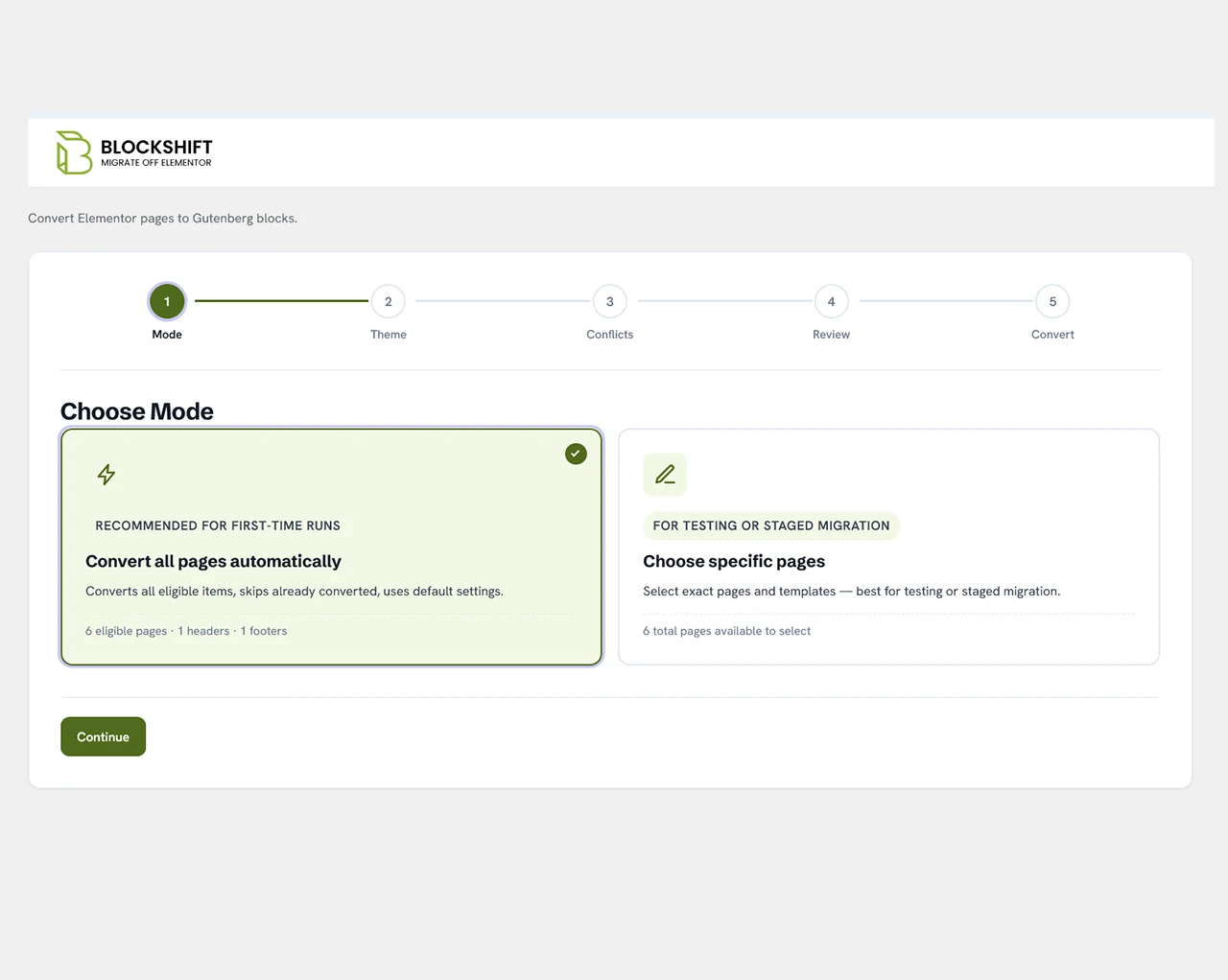
- Conversion Wizard — where you actually run conversions.
- AI Enhancement — information and feedback around the AI feature.
- Conversion Log — the per-element report.
- Settings — page width, defaults, logging, and the AI key.
Your first conversion
- Open Settings and set the section content width to match your Elementor design (1140, 1200, and 1024 are common). This keeps converted pages the same width as the originals.
- Open the Conversion Wizard.
- Pick one page to start with. Convert a single page before doing more, so you can judge the quality first.
- Run it and wait for it to finish.
- Open the new page in the block editor and look it over.
- If it is close but not perfect, run an AI Enhancement pass.
- Check the Conversion Log for anything flagged as unsupported or empty.
- Happy with it? Do the rest, then switch your site over when you are ready.
For a full site, follow the Migration Checklist.
✦ KEEP READING
Related pages
Migration checklist
The plan for a whole site, in order.
Settings
Every option explained, starting with page width.
The Conversion Wizard
The screen you will use most.
Convert your first page in a click.
Free and open-source, running entirely on your own server. Your Elementor pages stay exactly where they are.